Set up shared Folder
View public Calendar, Contacts or other folders on any device you are using. Sync public folder with Google, iCloud and Office365
 FREE DOWNLOAD
No Commitment. Privacy Policy and
System Requirements
 PURCHASE
Software you can trust Licensing (EULA)
Compare Free with Pro
Sync2 Cloud Customers Reviews

Set up shared Folder and other Sync2 Cloud features
Add public Calendar to Google, Office 365, iCloud or any mobile device you use. Compatible with Android, Apple and Windows devices.

Set up shared Folder

It is very simple to set up shared folder. Install Sync2Cloud on the computer with Outlook. After an easy setup your public Calendar events and meeting will be synced and displayed in Outlook.

Access Public Folder on a phone
Access your Outlook public Folder on a mobile device and access it anywhere you are. Simply synchronize your public folder with Google/iCloud/Office365 accounts.

Automatic synchronization with iCloud, Google, Office 365
Your Outlook is synchronized automatically at the time intervals of your choice. All chosen data updated instantly, even if your Outlook is closed. Sync2 Cloud supports manual synchronization as well.

Synchronize with different Outlook versions
Sync2 Cloud is compatible with all Outlook versions. Update iCloud Contacts from Outlook 2007, 2010, 2013, 2016 or 2019. One Outlook account can be synchronized with several Cloud based sources.

One-way or two-way synchronization
Choose 1 or two-way synchronization directions for different team members. Sync2 Cloud allows bidirectional sync between public Calendar and Outlook, Google, iCloud, Office365, or mobile device Calendar
How to set up shared Folder
Step by step instructions on how to set up shared folder
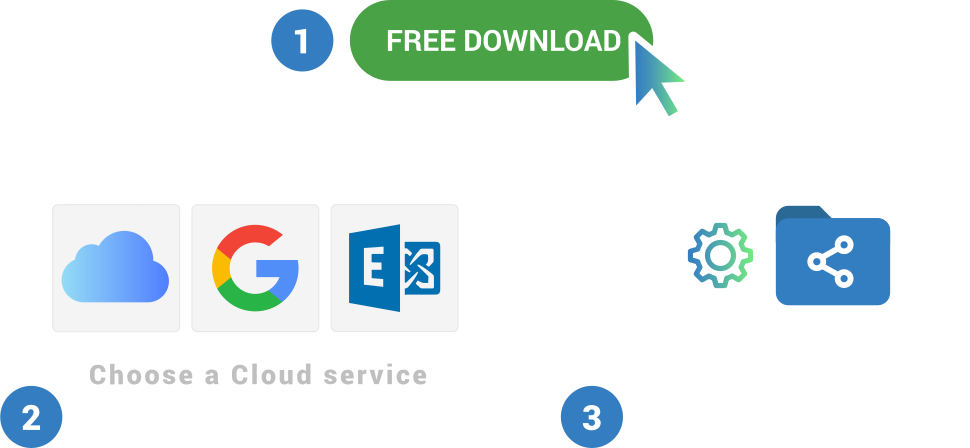
- Purchase the license and activate it. Install Sync2 Cloud on a computer with Microsoft Outlook;
- Launch Sync2 Cloud and create a new synchronization profile;
- Choose public Folder source option;
- Choose which public folders you want to synchronize;
- Click “Finish” to start synchronization immediately or configure advanced synchronization settings.

About 4Team Corporation
The company behind Sync2 Cloud
4Team Corporation is a Microsoft Gold Certified Partner and independent software vendor. Since 1999 we are developing software for Microsoft Windows and Add-ins for Microsoft Outlook. Our Sync2 Cloud makes collaboration between different platforms an easy task. Add Public folder, Calendar, Contacts list or Tasks to devices you use. We are serving hundreds of thousands of customers around the world. We are very proud to be highly recommended by our customers and offer award-winning support.
Our satisfied customers
Customers all over the world are successfully using 4Team Corporation services for personal and business needs