



 -
P FS, USA
Rating: 4.9 - 400 reviews
-
P FS, USA
Rating: 4.9 - 400 reviews
Really impressed. So far am loving the product. I have tried/tested every app I could find to sync outlook/icloud and this is hands down the best I've found."
About 4Team Corporation,
the company behind Sync2 Cloud
We are a Microsoft Gold Certified Partner and independent software developer and vendor. Since 1999 we have provided business solutions to our corporate customers and individual end-users worldwide. We are very proud to be highly recommended by our satisfied customers and offer award-winning support.




Synchronize iPhone Calendar with Outlook and other Sync2 Cloud features:
Sync iPhone Calendar with Outlook wirelessly
With Sync2 Cloud you can synchronize Outlook Calendar with iPhone without directly connecting your iPhone to your computer. Sync iPhone Calendar with Microsoft Outlook 2007, 2010, 2013 and 2016. After synchronization you can access your iCloud or iPhone Calendar in Outlook.

Sync iPhone Calendar with Outlook without iTunes
With Sync2 Cloud you can sync Outlook Calendar with iPhone without iTunes. Sync default Microsoft Outlook Calendar with iPhone Calendar. You can add events to your Outlook calendar and they will be synchronized with your iPhone.
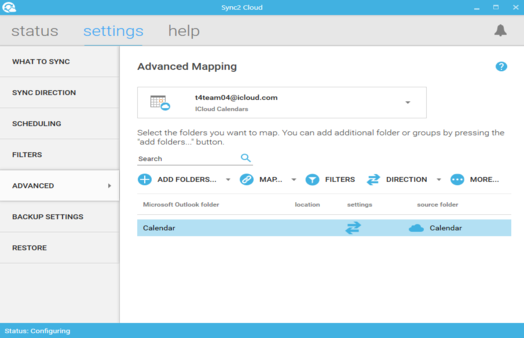
Sync iPhone Calendar to Outlook via iCloud
With Sync2 Cloud you can sync your iPhone Calendar with Outlook via iCloud. After the synchronization, your iPhone Calendar will be transferred to Microsoft Outlook, so you will be able to see and share your calendar events from iPhone and Outlook.
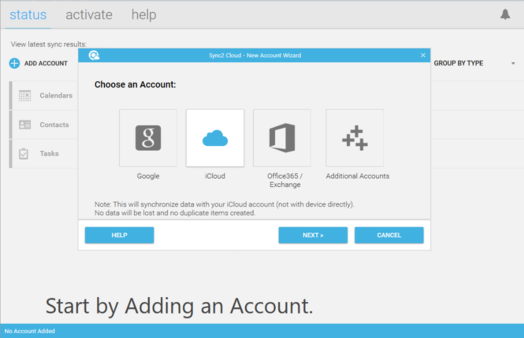
How to Synchronize iPhone Calendar with Outlook:
Just follow these simple steps:
- Disconnect from iTunes synchronization;
- Download and Install Sync2 Cloud on a PC where Microsoft Outlook needs to be synchronized;
- Launch Sync2 Cloud, select “Add source/account”, choose iCloud synchronization option and log in to you iCloud account;
- Select Calendar option and click “Next”;
- If you want to sync your iPhone calendar with default Outlook calendar, choose the advanced options. You can choose sync direction (one or two-way);
- Click “Finish” to begin synchronization;
- Repeat steps 3-6 to add Calendars from other iCloud accounts, if you want to sync Outlook with multiple iCloud accounts.
In a few moments your outlook and iphone calendars will be synchronized.

The software you can trust









#211
Coral Springs
FL 33076 ,USA
Skype:

Copyright 2018 4Team Corporation. All rights reserved. Privacy and Terms.
Microsoft and the Office logo are registered trademarks of Microsoft Corporation in the United States and/or other countries.